Webex App | Manage All Your Phone Calls in One Place
Overview
When you connect your Webex App to your desk phone, you get the best of both worlds — the audio quality and familiarity of your Cisco desk phone with the full call management power of the Webex App on your computer or mobile device.
This is especially useful for Cisco 9800 series phones (9811, 9841, 9851, 9861, 9871) where some advanced call management features like conference participant lists are only available through the Webex App.
This article is based on Webex App | Manage all your phone calls in one place from Cisco's official documentation, adapted for Perdigon customers using Cisco desk phones with Webex Calling.
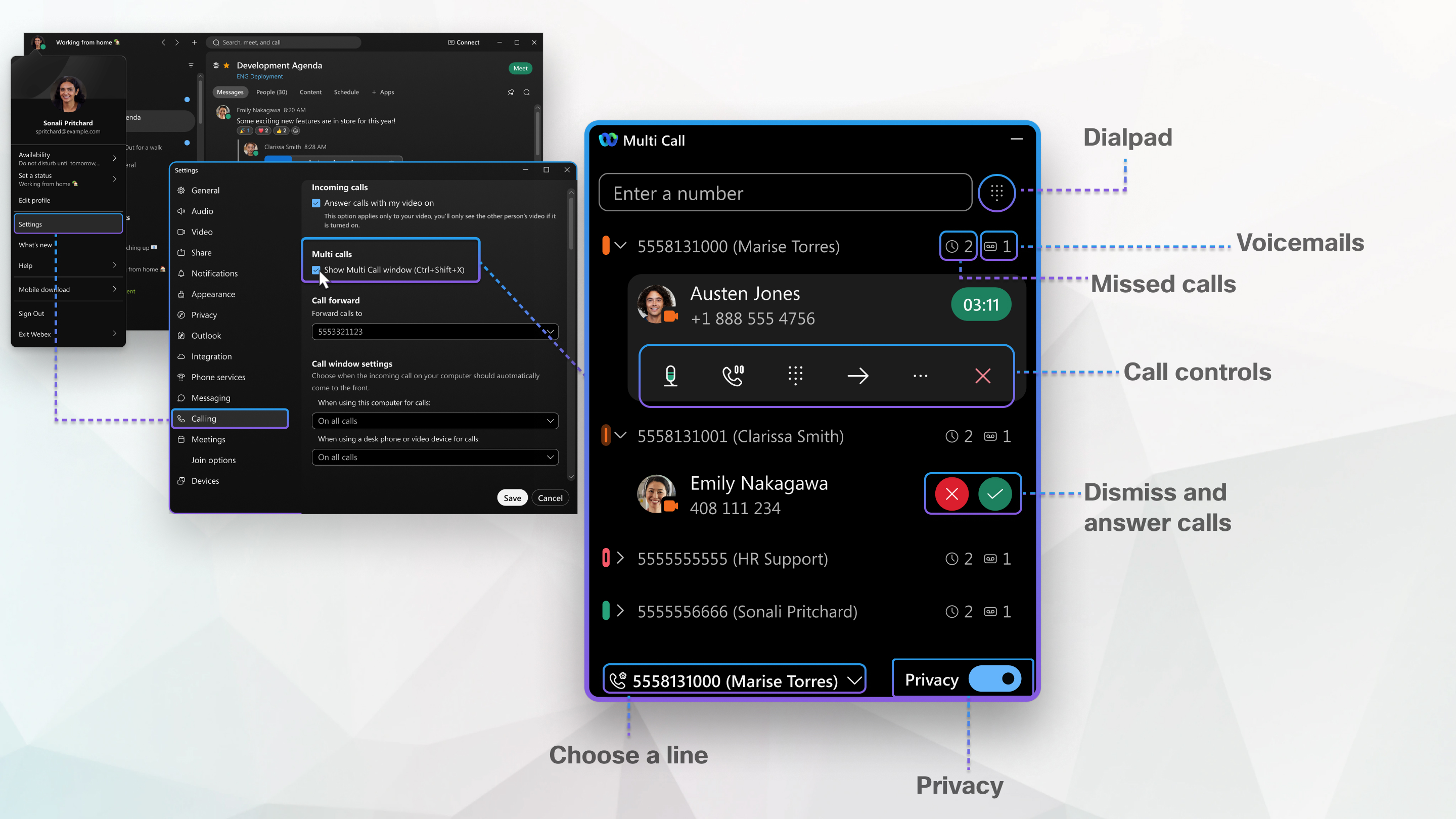
Connect Your Desk Phone to Webex App
Before you can manage calls from the Webex App, connect it to your desk phone:
- Open the Webex App on your computer (Windows or Mac).
- Click your profile picture in the top-left corner, then go to Settings > Calling.
- Under Call using, select Desk phone.
- Your registered desk phone will appear in the list — select it.
Make and Receive Calls
With your desk phone connected, you can make and receive calls from either device:
Make a Call
- In the Webex App, click the Calling icon in the left sidebar.
- Enter a name, number, or extension in the search bar.
- Click the Audio call button.
- The call rings on your desk phone — pick up the handset or press speaker.
Receive a Call
When a call comes in, it rings on both your desk phone and the Webex App simultaneously. You can answer from either:
- Desk phone: Pick up the handset or press the line key
- Webex App: Click Answer in the incoming call notification
Mid-Call Controls
During an active call, the Webex App shows a call control bar with these options:
| Control | What It Does |
|---|---|
 Mute Mute | Mute/unmute your microphone |
 Hold Hold | Place the call on hold (music plays for the other party) |
 Transfer Transfer | Transfer the call to another person (blind or consultative) |
 Conference Conference | Add another person to create a conference call |
 Park Park | Park the call on an extension for someone else to pick up |
 More More | Additional options: record, share screen, send to voicemail |
Conference Calls — The Key Advantage
This is where the Webex App really shines alongside your desk phone. The app gives you full conference participant management that isn't available on the desk phone screen alone.
Start a Conference Call
- Make a call from your desk phone (or answer an incoming call).
- In the Webex App call window, click Conference (or Merge).
- Search for the person you want to add by name, number, or extension.
- Click Call — the first party is placed on hold while the second call connects.
- Once connected, click Merge to join all parties into a conference.
Manage Conference Participants
During a conference, the Webex App shows a participant panel where you can:
- See all participants — every person on the conference is listed by name
- Add more people — click the add participant button to dial another person into the conference
- Mute a participant — mute any individual person on the call
- Remove a participant — drop a specific person from the conference without ending the call for everyone else
Executive Assistant Conference Workflow
For executive assistants managing calls on behalf of their boss:
- Answer or place the call on the boss's shared line (desk phone handles audio).
- Open the Webex App on your computer — the active call appears automatically.
- Click Conference in the app to add participants.
- Use the participant panel to see who's on the call, add more people, or remove someone.
- The desk phone stays on speaker/handset for audio — the app manages everything else.
Call History
The Webex App keeps a complete call history that syncs across all your devices:
- Click the Calling icon in the left sidebar.
- Select the Call History tab (or Recents).
- You'll see all calls — made, received, and missed — with timestamps.
- Click any entry to call back, or click the info icon for details.
Call history includes calls made from both the Webex App and your desk phone.
Voicemail
Access and manage voicemail directly from the Webex App:
- Click the Calling icon, then select the Voicemail tab.
- All voicemail messages appear with the caller's name, number, and timestamp.
- Click Play to listen through your computer speakers or headset.
- Click Call back to return the call via your desk phone.
- Click Delete to remove messages.
Call Forwarding
Set up call forwarding without navigating phone menus:
- In the Webex App, click your profile picture > Settings > Calling.
- Under Call Forwarding, toggle the option you want:
- Always — forward all calls to a number
- When busy — forward when you're on another call
- When unanswered — forward after a set number of rings
- Enter the destination number and save.
Do Not Disturb
Enable DND to silence all incoming calls:
- Click your profile picture in the Webex App.
- Click your current status (e.g., "Available").
- Select Do Not Disturb.
Your desk phone will also stop ringing. Calls go directly to voicemail or your forwarding destination.
Shared Lines & Multiple Lines
If your desk phone has shared line appearances (e.g., an assistant monitoring the boss's line), the Webex App shows all lines:
- Each shared line appears in the calling interface
- You can answer calls on any shared line from the app
- Line status indicators show which lines are in use
- You can pick up held calls on shared lines
Call Recording
If call recording is enabled for your account:
- During an active call, click More (…) in the call control bar.
- Select Record to start recording.
- A recording indicator appears for all parties on the call.
- Click Pause or Stop to manage the recording.
Transfer Calls
Blind Transfer (Direct)
- During a call, click Transfer in the Webex App.
- Search for the person or enter a number.
- Click Transfer — the call is immediately sent to that person.
Consultative Transfer (Warm)
- During a call, click Transfer.
- Select Consult first.
- The original caller is placed on hold while you speak with the transfer target.
- Click Complete Transfer to connect them, or Resume to go back to the original caller.
Transfer to Voicemail
- During a call, click More (…).
- Select Send to Voicemail.
- Choose your own voicemail or search for another person's voicemail.
Call Park
Park a call so it can be picked up from any phone in your organization:
- During a call, click More (…) > Call Park.
- The app displays the park extension where the call was parked.
- Tell the other person: "Your call is parked on extension [number]."
- They dial *88 followed by the park extension to pick it up.
Supported Desk Phones
The Webex App works alongside these Cisco desk phones on Webex Calling:
| Phone Series | Models | Native Conf Participant List |
|---|---|---|
| 9800 Series (PhoneOS) | 9811, 9841, 9851, 9861, 9871 | No — use Webex App |
| 8800 Series (MPP) | 8811, 8841, 8845, 8851, 8861, 8865 | Yes — ConfList softkey |
| Video Phone 8875 | 8875 | Yes — touchscreen |
| 7800 Series (MPP) | 7811, 7821, 7841, 7861 | Yes — ConfList softkey |
| 6800 Series (MPP) | 6821, 6841, 6851, 6861, 6871 | Yes — ConfList softkey |
Download Webex App
If you don't have the Webex App installed:
- Windows / Mac: webex.com/downloads
- iOS: App Store
- Android: Google Play
Sign in with the same email address as your Webex Calling account. Your desk phone will appear automatically once both are registered to the same user.
More Resources
- Cisco: Webex App | Manage all your phone calls in one place
- Cisco: Ad-hoc conference on 9800/8875
- Cisco: Configure conference settings for phones
Source: Adapted from Webex App | Manage all your phone calls in one place by Cisco. Customized for Perdigon Group customers. Last updated March 28, 2026.
Related Articles
Webex App | Place, Receive, and Conference Calls (Mobile & Desktop)
Overview This guide covers how to place, receive, and manage phone calls using the Webex App on both mobile devices (iOS and Android) and desktop (Windows and Mac). You’ll also learn how to start conference calls and add or remove participants from ...Webex Calling | Conference Calls with Your Desk Phone
Overview This guide covers everything you need to know about conference calling when using a Cisco desk phone with the Webex App. Whether you're an executive assistant managing calls for your boss or a team member pulling colleagues into a ...Webex App | Remove Someone from a Conference Call
Overview During a conference call, you may need to remove a participant who was added accidentally or is no longer needed on the call. The Webex App lets you remove individual participants without ending the conference for everyone else. Source: ...Webex App | Manage notifications for incoming calls
Overview You can turn off the ringing sound and notification that pops up when someone is calling you directly or when you have a call pickup notification. You might want to do this if you don’t want to receive work calls on your mobile. Or maybe you ...Webex Calling | Forwarding Calls
Overview Forward your phone calls If you don’t want to miss important calls, forward them to another number and to stay uninterrupted, forward calls to voicemail. In User Hub, you can configure when and whom to forward calls. Before you begin Your ...