Webex App | Place, Receive, and Conference Calls (Mobile & Desktop)
Overview
This guide covers how to place, receive, and manage phone calls using the Webex App on both mobile devices (iOS and Android) and desktop (Windows and Mac). You’ll also learn how to start conference calls and add or remove participants from either platform.
Based on Cisco documentation: Make a phone call, Answer a phone call, and Start a conference call.
Mobile App — Placing a Call
There are several ways to place a call from the Webex mobile app:
| Method | Steps |
|---|---|
| Keypad | Tap the Calling tab (phone icon) at the bottom → tap the Keypad icon → dial the number → tap the green Call button |
| Search | Tap the Search bar at the top → type a name, email, or number → tap the contact → tap the Call (phone) icon |
| Contacts | Tap the Calling tab → tap Contacts → select a contact → tap the phone icon to call |
| Recents | Tap the Calling tab → tap Call History → tap any entry to call back |
Mobile App — Receiving a Call
When an incoming call arrives on the Webex mobile app:
- App is open: A full-screen incoming call notification appears showing the caller’s name or number and which line is ringing.
- App is in the background or phone is locked: A push notification banner appears at the top of the screen (iOS) or as a heads-up notification (Android).
- Tap the green Answer button to pick up the call.
- Tap the red Decline button to send the call to voicemail.
Mobile App — During a Call
While on an active call, the following controls appear on screen:
| Control | What It Does |
|---|---|
| Mute | Mutes your microphone — the other party cannot hear you |
| Speaker | Toggles speakerphone on or off |
| Hold | Places the caller on hold — they hear hold music until you resume |
| Transfer | Transfer the call to another person (blind or consultative) |
| Keypad | Opens the dial pad for entering extensions or navigating IVR menus |
| More (…) | Additional options including Add People, Park Call, and audio device selection |
| End Call | Hangs up the call (red button) |
Mobile App — Conference Calls
Starting a Conference
- While on an active call, tap More (…), then select Conference.
- The first caller is automatically placed on hold.
- Search for or dial the second person you want to add.
- Select Audio call.
- Once the second person answers, tap Merge calls to combine both calls into a conference.
- All parties are now connected and can hear each other.
Managing Participants (Mobile)
During a conference, tap the Participants icon (person icon in the top-right corner) to see everyone on the call.
- To remove someone: Press and hold the participant’s name, then tap Remove from the conference.
- Only the person who initiated the conference can remove participants.
- When only 2 people remain, the call reverts to a normal one-to-one call.
Desktop App — Placing a Call
On the Webex desktop app (Windows or Mac), you can place calls using any of these methods:
| Method | Steps |
|---|---|
| Search Bar | Click the Search bar at the top → type a name, email, or phone number → hover over the contact and click the Call (phone) icon |
| Dial Pad | Click Calling in the left sidebar → click the Dial Pad icon → type the number → press Enter or click the green call button |
| Calling Dock | If enabled, the Calling Dock is a floating panel showing your phone lines — click a line to dial from it |
| Contacts / Recents | Click Calling in the sidebar → browse Contacts or Call History → click the phone icon next to an entry |
Desktop App — Receiving a Call
When an incoming call arrives on the desktop app:
- A notification popup appears in the corner of your screen showing the caller’s name or number and which line is ringing.
- If the Calling Dock is enabled, it will pop to the front automatically.
- Click the green Answer button to pick up the call.
- Click the red Decline button to send the call to voicemail.
Desktop App — During a Call
While on an active call, a call controls bar appears at the bottom of the Webex window:
| Control | What It Does |
|---|---|
| Mute | Mutes your microphone |
| Hold | Places the caller on hold with hold music |
| Transfer | Transfer the call (blind or consultative) |
| Keypad | Opens the in-call dial pad for extensions or IVR menus |
| Device Controls | Switch between audio devices (headset, speaker, handset) |
More (…)  | Additional options including Conference, Park Call, and call recording |
| End Call | Hangs up the call (red X button) |
Desktop App — Conference Calls
Starting a Conference
- While on an active call, click More , then select Conference
 .
. - The first caller is placed on hold.
- Search for the person you want to add by name, number, or extension.
- Select Audio call
 .
. - Once the second party answers, click Merge calls
 .
. - All parties are now connected in a conference.
Managing Participants (Desktop)
During a conference, click the Participant Panel  button to see everyone on the call.
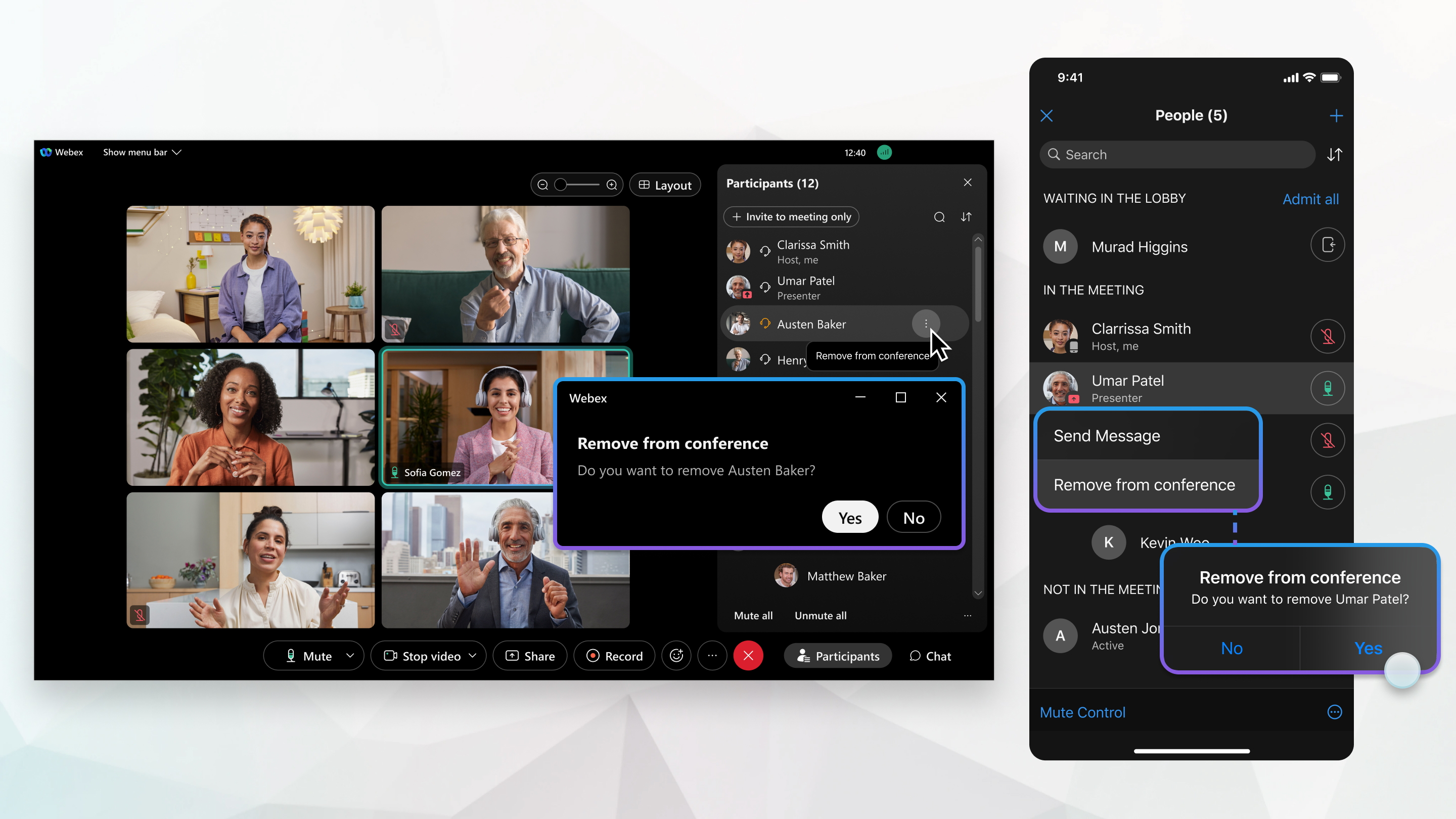
- To remove someone: Hover over their name, click More
 , then select Remove from Conference.
 - Only the person who initiated the conference can remove participants.
- When only 2 people remain, the call reverts to a normal one-to-one call.
Frequently Asked Questions
| Question | Answer |
|---|---|
| How many people can I add to a conference? | Webex Calling supports up to 6 participants in an ad-hoc conference call (including yourself). For larger groups, use Webex Meetings instead. |
| Can I use mobile and desktop at the same time? | Yes. You can be signed in on both simultaneously. When a call comes in, both devices will ring. Answering on one device stops the other from ringing. |
| Can I move a call between devices? | Yes. While on a call on your mobile, open Webex on your desktop and click Pull Call to move the active call to your computer (or vice versa). |
| What is a blind vs. consultative transfer? | Blind: sends the call immediately without speaking to the recipient. Consultative: lets you speak with the recipient before completing the transfer. |
| Why am I not getting call notifications on my phone? | Check that Webex notifications are enabled in your device’s Settings. On iOS, enable Background App Refresh. On Android, make sure Webex is not restricted by battery optimization. |
| What does Park Call do? | Park Call places the call in a shared “parking lot” so another team member can pick it up from any device. Useful for reception or shared phone environments. |
| If I end the conference, does everyone disconnect? | Yes. If the person who started the conference hangs up, all participants are disconnected. |
Related Articles
- Conference Calls with Your Desk Phone — Conference calling when paired with a Cisco desk phone
- Start a Conference Call — Detailed conference call setup guide
- Manage All Your Phone Calls in One Place — Using Webex App with your desk phone
Need Help?
If you need assistance with Webex Calling, contact Perdigon Support at support@perdigon-group.com or submit a ticket through the support portal.
Related Articles
Webex App | Manage notifications for incoming calls
Overview You can turn off the ringing sound and notification that pops up when someone is calling you directly or when you have a call pickup notification. You might want to do this if you don’t want to receive work calls on your mobile. Or maybe you ...Webex App | Supported calling options in Webex App
In Webex App, you're assigned a calling option that works best in your organization or for your individual needs. When you make a call from the app, your calling experience depends on your account settings. You can make a call from many different ...Webex Calling | Supported calling options in Webex App
In Webex App, you're assigned a calling option that works best in your organization or for your individual needs. When you make a call from the app, your calling experience depends on your account settings. You can make a call from many different ...Webex Calling | Forwarding Calls
Overview Forward your phone calls If you don’t want to miss important calls, forward them to another number and to stay uninterrupted, forward calls to voicemail. In User Hub, you can configure when and whom to forward calls. Before you begin Your ...Webex App | Get started with Webex App
In real-time or anytime, Webex App is engaging, intelligent and inclusive and helps you create exceptional experiences and makes working together distinctly better. Welcome to Webex App Messaging Meetings Calling The all new Webex App is one ...