Webex Calling | Forwarding Calls

Webex Calling | Forwarding Calls

Overview

Forward your phone calls

If you don’t want to miss important calls, forward them to another number and to stay uninterrupted, forward calls to voicemail.

In User Hub, you can configure when and whom to forward calls.
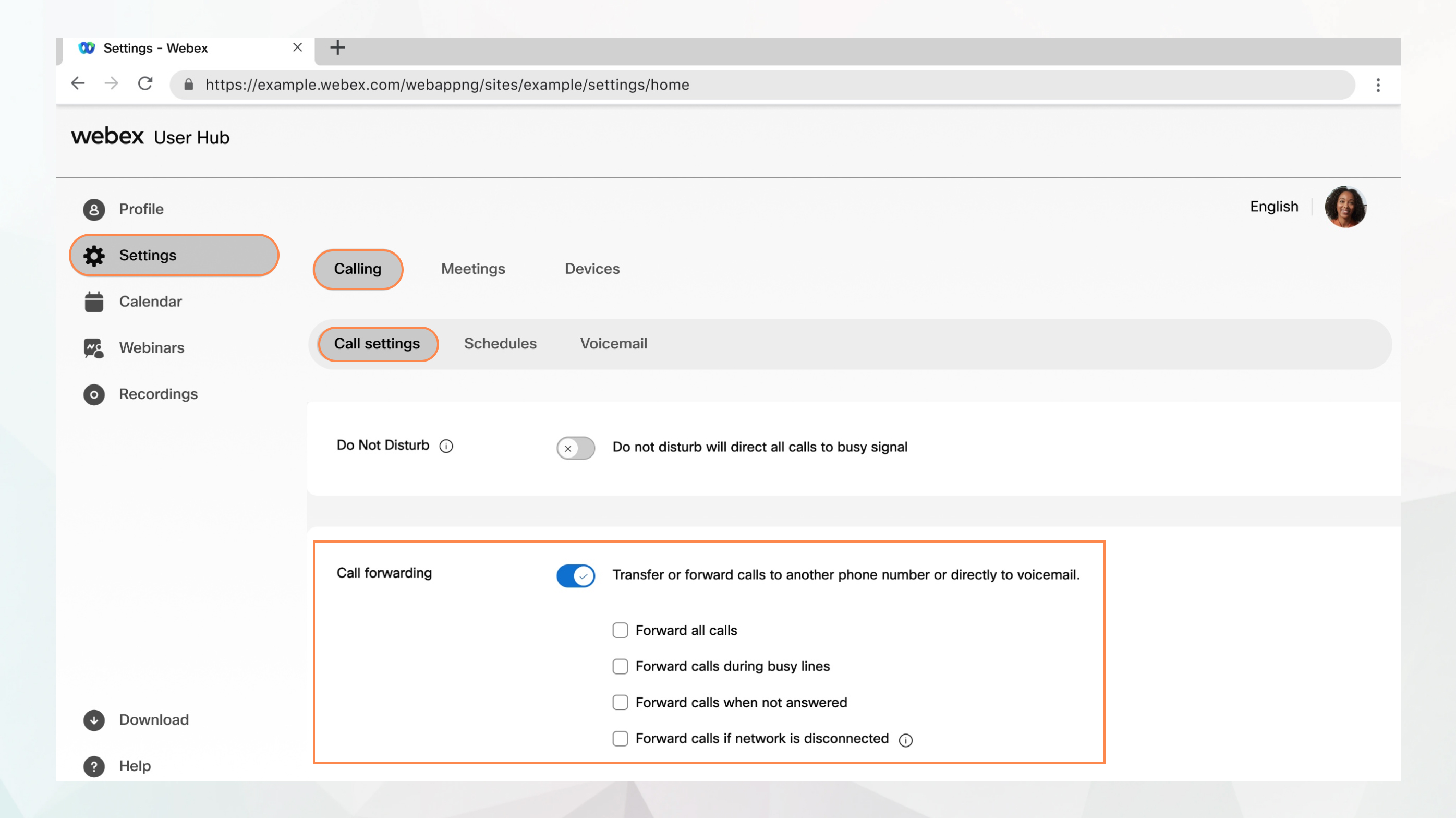
call forward option in user hub

Before you begin

  • Your administrator must have enabled this feature for you to access and configure it. If you don’t see this setting, check with your administrator.

  • You can configure all the call settings from the User Hub by navigating to Settings > Calling.

    The Calling option is available only for users with the Webex Calling license. If you don’t see the Calling option, it means you don’t have the Webex Calling license.

    If you want to find out which calling service you’re set up with, you can check from the Webex App. For more details, see Find out what calling service you have.

1

Sign in to User Hub.

2

Go to Settings > Calling > Call settings.

3

Go to the Call forwarding section and turn on the toggle.

4

Select the call forwarding option that you want to use.

  • Forward all calls—Choose this option to forward all calls to a specific phone number. You can:

    • Enter a specific internal or external phone number to which you want to forward the calls.

    • Select Allow forwarded calls to leave voicemail. This option is only available for selection if you've entered a valid internal phone number with voicemail service enabled.

    • Select Play a brief tone for forwarded calls to play a brief tone whenever a call is forwarded.

  • Forward calls during busy lines—Choose this option to forward the calls when the line is busy. You can:

    • Enter a specific internal or external phone number to which you want to forward the calls.

    • Select Allow forwarded calls to leave voicemail. This option is only available for selection if you've entered a valid internal phone number with voicemail service enabled.

    If the call waiting is enabled, this feature isn't triggered.

  • Forward calls when unanswered—Choose this option to forward the calls when you’re away or not answering your phone. You can:

    • Enter a specific internal or external phone number to which you want to forward the calls.

    • Set the Number of rings before forwarding. Once the call exceeds this number of rings, it will be forwarded to the phone number entered.

    • Select Allow forwarded calls to leave voicemail. This option is only available for selection if you've entered a valid internal phone number with voicemail service enabled.

  • Forward calls if the network is disconnected—Choose this option to forward the calls when your Webex Calling primary line is inaccessible, clients, and devices aren't connected due to power outage, or your office loses connectivity. You can:

    • Enter a specific internal or external phone number to which you want to forward the calls.

    • Select Allow forwarded calls to leave voicemail. This option is only available for selection if you've entered a valid internal phone number with voicemail service enabled.

    If you’re using the Webex App for mobile, this feature doesn't apply.

5

Click Save.


Source: https://help.webex.com/en-us/article/5er4f3/Webex-App-%7C-Transfer-a-phone-call

    • Related Articles

    • Webex Calling | Supported calling options in Webex App

      In Webex App, you're assigned a calling option that works best in your organization or for your individual needs. When you make a call from the app, your calling experience depends on your account settings. You can make a call from many different ...
    • Webex App | Supported calling options in Webex App

      In Webex App, you're assigned a calling option that works best in your organization or for your individual needs. When you make a call from the app, your calling experience depends on your account settings. You can make a call from many different ...
    • Webex Calling | Manage a shared voicemail and inbound fax box for Webex Calling

      You can create a shared voicemail and inbound fax mailbox and assign to users or call routing features. The voicemail group feature allows you to set up message notifications, save messages, and customize the voicemail greeting. You might use a ...
    • Webex Calling | Configure and manage voicemail settings for a Webex Calling user

      Enable a user's voicemail and voicemail settings in Control Hub by giving them the ability to send calls to voicemail when they're busy or can't get to the phone, to enable voicemail notifications via email or text, or store voice messages in a ...
    • Webex App | Manage All Your Phone Calls in One Place

      Overview When you connect your Webex App to your desk phone, you get the best of both worlds — the audio quality and familiarity of your Cisco desk phone with the full call management power of the Webex App on your computer or mobile device. This is ...