Webex App | Remove Someone from a Conference Call
Overview
During a conference call, you may need to remove a participant who was added accidentally or is no longer needed on the call. The Webex App lets you remove individual participants without ending the conference for everyone else.
Source: Webex App | Remove someone from a conference call — Cisco
Remove a Participant — Desktop (Windows / Mac)
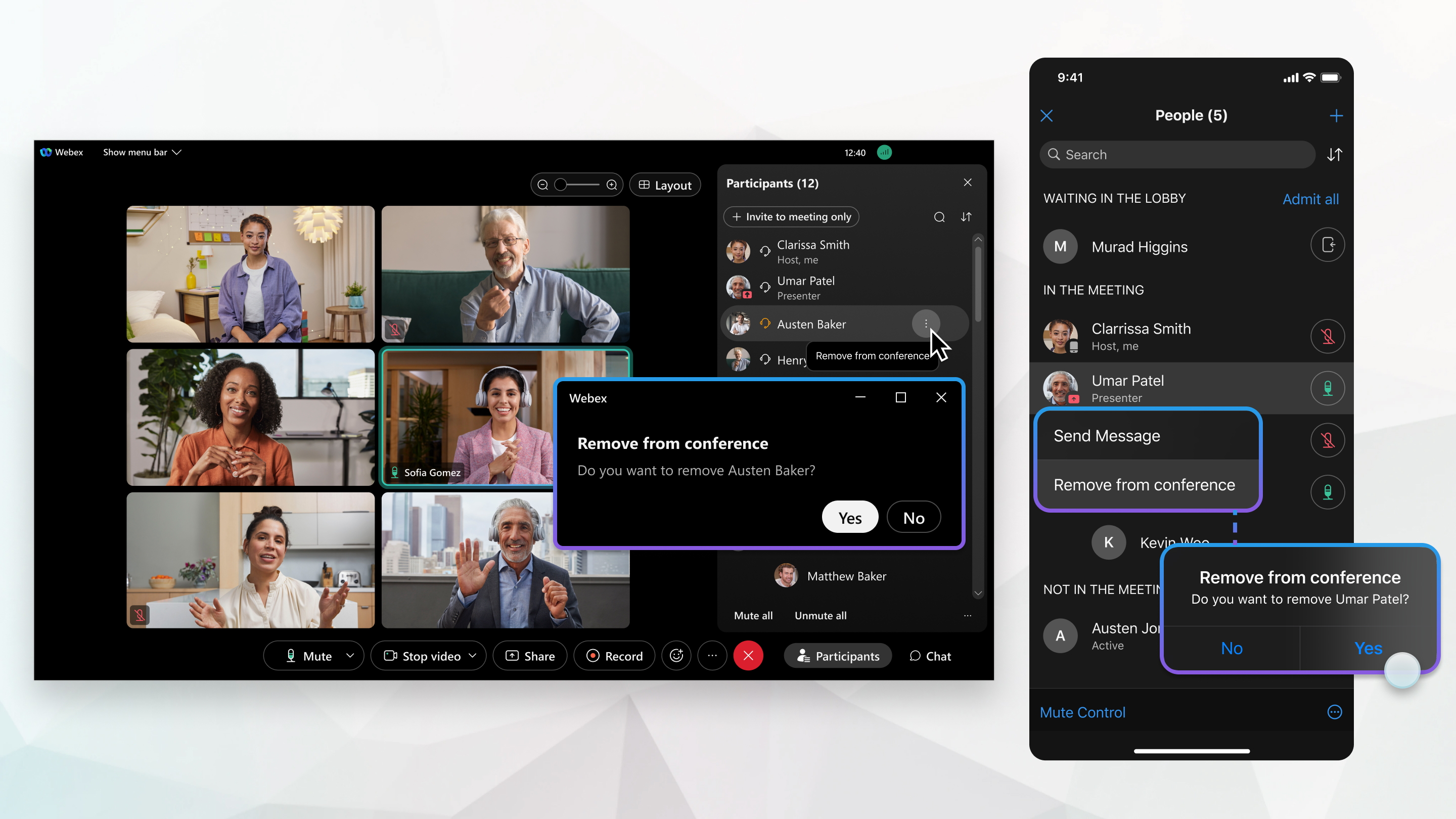
- During the conference call, open the Participant Panel
 to see all participants.
 - Find the person you want to remove and hover over their name.
- Click More
 next to their name.
 - Select Remove from Conference.
- Click Yes to confirm.
The participant is immediately disconnected from the conference. The remaining participants continue their call.
Remove a Participant — Mobile (iOS / Android)
- During the conference call, open the Participant Panel.
- Press and hold the name of the participant you want to remove.
- Tap Remove from Conference.
- Tap Yes to confirm.
Important Notes
- You can only remove participants that you personally added to the conference.
- You cannot remove the original call initiator or people added by other participants.
- When the conference drops to 2 remaining participants, the call automatically reverts to a normal one-to-one call.
9800 Series Desk Phone Users: The participant panel and remove feature are only available through the Webex App, not on the desk phone screen. Keep the Webex App open on your computer alongside your desk phone to manage conference participants. See Webex App | Manage All Your Phone Calls in One Place for setup instructions.
Related Articles
Source: Webex App | Remove someone from a conference call by Cisco. Adapted for Perdigon Group customers. Last updated March 28, 2026.
Related Articles
Webex App | Supported calling options in Webex App
In Webex App, you're assigned a calling option that works best in your organization or for your individual needs. When you make a call from the app, your calling experience depends on your account settings. You can make a call from many different ...Webex Calling | Supported calling options in Webex App
In Webex App, you're assigned a calling option that works best in your organization or for your individual needs. When you make a call from the app, your calling experience depends on your account settings. You can make a call from many different ...Webex Calling | Basic Features At-a-Glance
Overview Here are just some of the calling features at your fingertips: Call Hold - You can put an active call on hold and then resume the call when you're ready. If it's a video call, your video is turned off while the call is on hold. Conference ...Webex App | Place, Receive, and Conference Calls (Mobile & Desktop)
Overview This guide covers how to place, receive, and manage phone calls using the Webex App on both mobile devices (iOS and Android) and desktop (Windows and Mac). You’ll also learn how to start conference calls and add or remove participants from ...Webex Calling | Conference Calls with Your Desk Phone
Overview This guide covers everything you need to know about conference calling when using a Cisco desk phone with the Webex App. Whether you're an executive assistant managing calls for your boss or a team member pulling colleagues into a ...