The all new Webex App is one easy-to-use and secure app you can use to call, message, meet, and get work done:
It brings everyone together to do exceptional work.
It makes you smarter; it’s personalized to you.
It gives you options to choose how you work.
It moves fluidly while you call, message, and meet.
We're glad to have you join us! If your company’s already given you an account, you’re ready to get started.
If you subscribe to Webex from your Service Provider, you already have an account and can start using the app right away.
If you don’t have an account yet, first choose a plan that works best for you, then you can get started using web.webex.com or by downloading the app. When you sign in for the first time, you're guided through some tips on how to use the app.
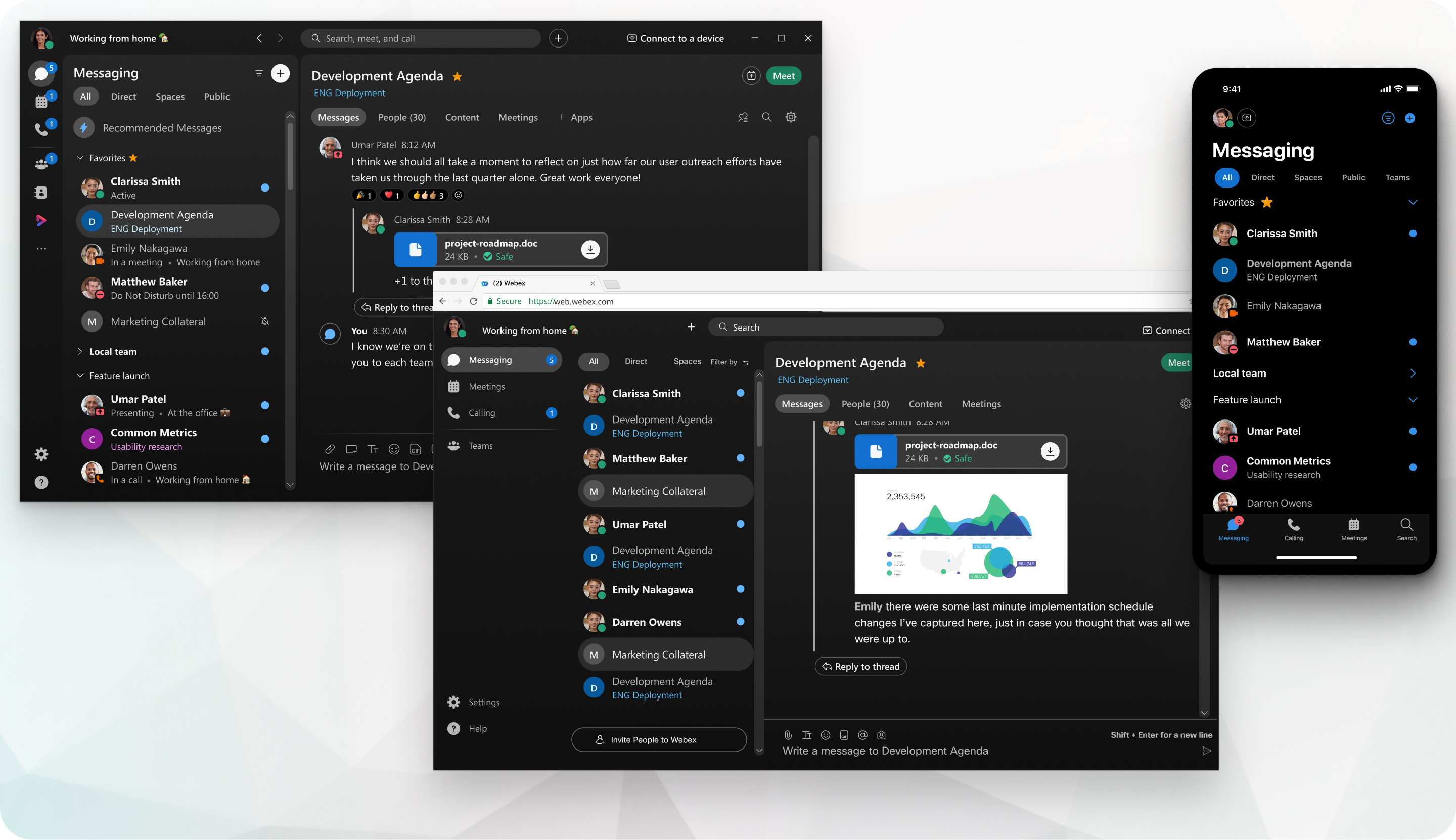
Our tips here focus on how to do things with the desktop app, but details about how to do these same things on web and mobile are included in the links. You can do some things the same way no matter which app you use, but for others you need to use the desktop app.
Start working together
When you start a conversation with someone, it creates a space between you and the people you invite to the conversation. You can invite anyone (including people outside your organization) to join in on a conversation. All you need is their email address.
All your work takes place within spaces and teams. Spaces give you a place to collaborate on a specific topic or project. In a space, you can send messages, schedule meetings, and call other people.
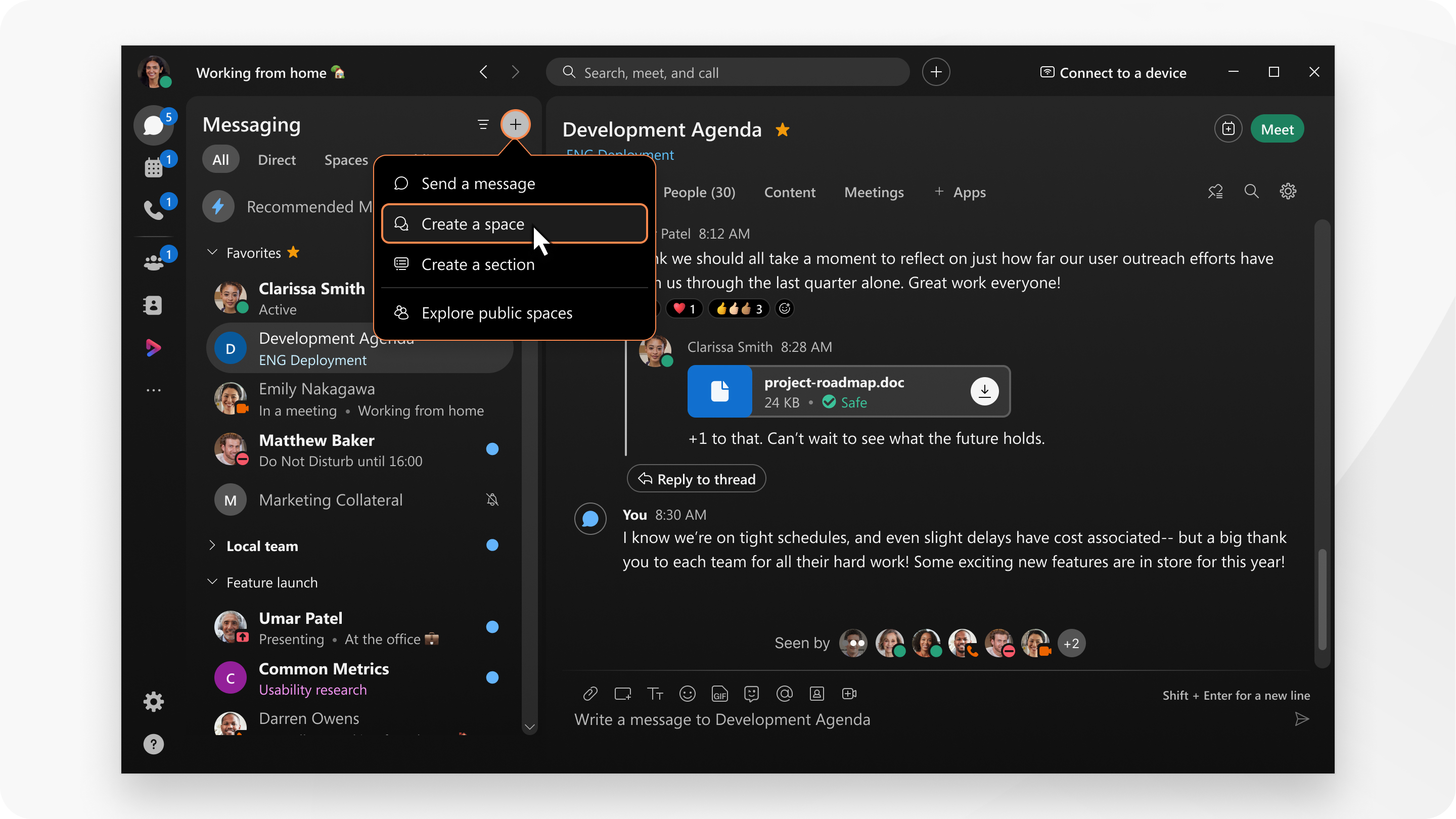
If your original intention changes and your project outgrows its original purpose, you can create a team and then move a space into a team. Teams help you keep everything organized by putting multiple spaces under a common theme. Teams are great for a consistent group of people who are going to be working on something for a long time. That something can involve many activities or can be subprojects happening at the same time.
If your organization has public spaces, you can discover, join or create public spaces and connect with people with similar interests, or keep up with the latest news.
And you find that you're in too many spaces and some of them don't require your input or you don't need to keep up with that particular conversation, you can leave any space at any time.
Elevate important information
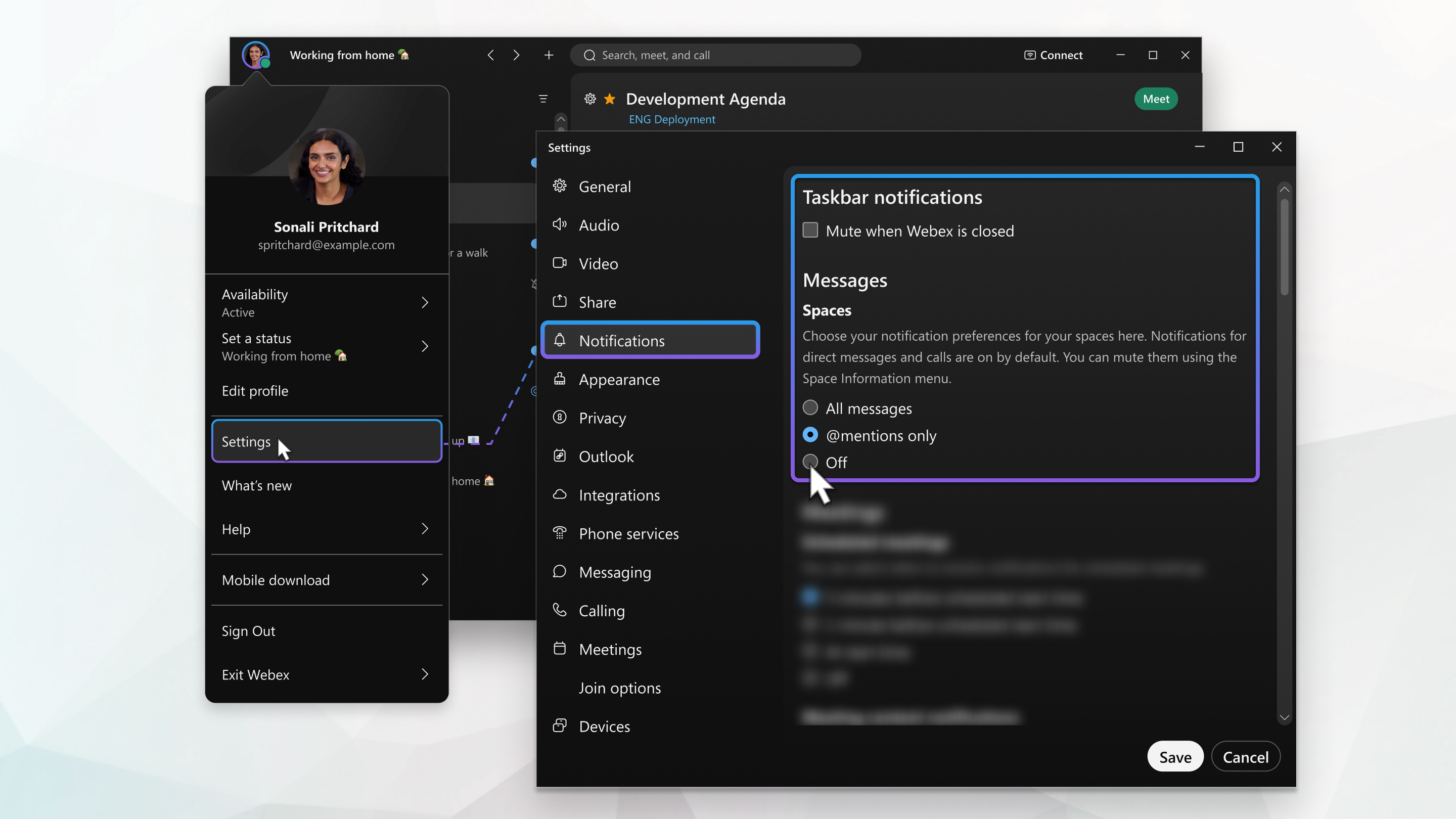
Right away, you're notified about all messages coming your way. Work smarter by keeping track of what's important to you. You can play around with your notifications until you figure out what works best for you. For example, you can set it up so that you're only notified when you're @mentioned in any space or when any message gets posted in your most important spaces. And if you're not interested in a particular space, you can leave it or hide it so that you're no longer notified about messages posted to that space and it doesn't show up in your Spaces list.
You can also see other people's availability so that you can find the right time to connect with them. For example, if you see a green circle around someone's profile picture, it means they've been using the app within the last 10 minutes so chances are, you'll get a response if you reach out.

On the other hand, if you see someone doesn't want to be disturbed, you might want to wait before reaching out.

Personalize your Webex App
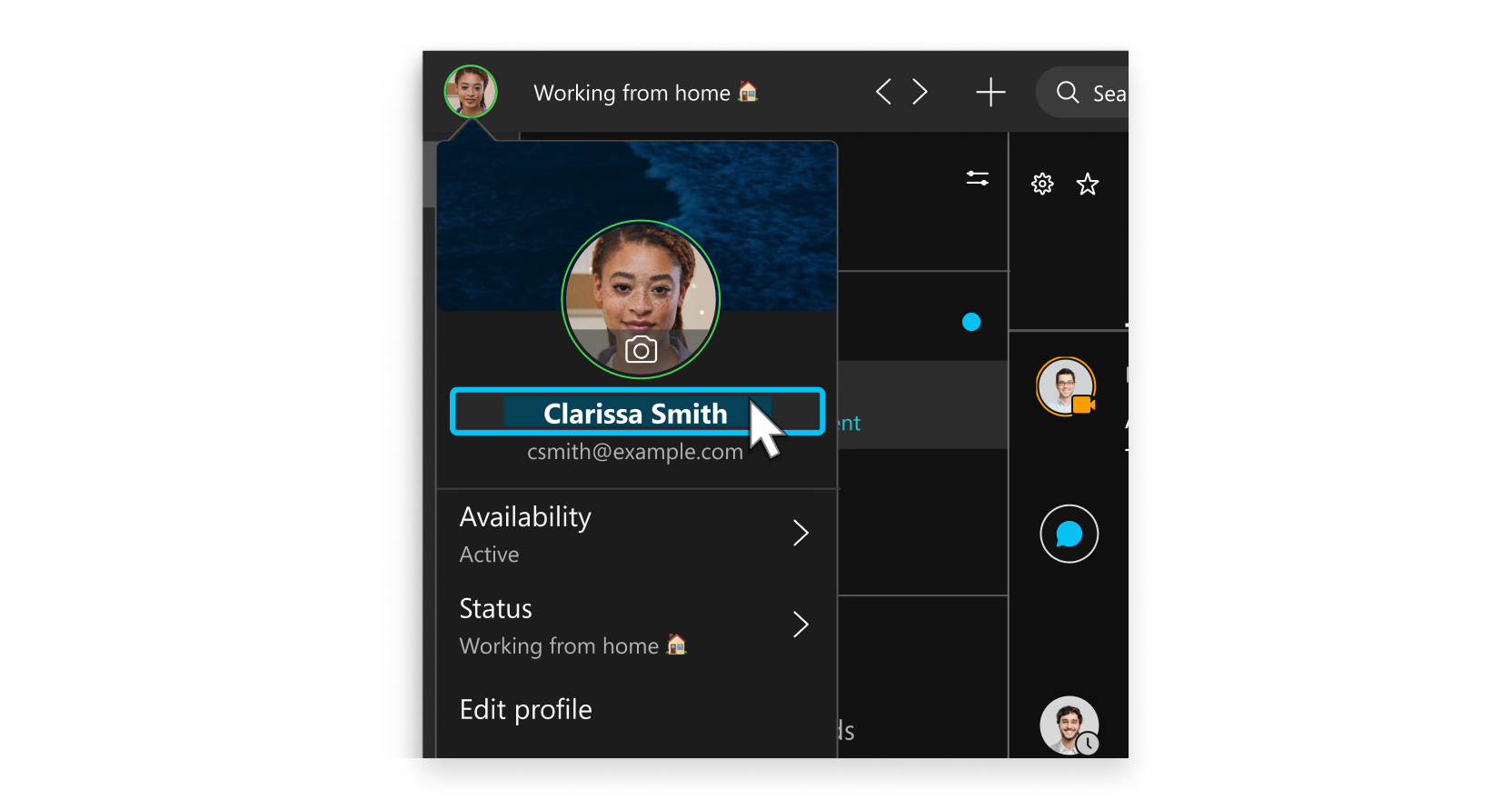
Make the Webex App feel more like your own by personalizing it a bit. Start by adding your own photo as your profile picture so that other people can recognize you.
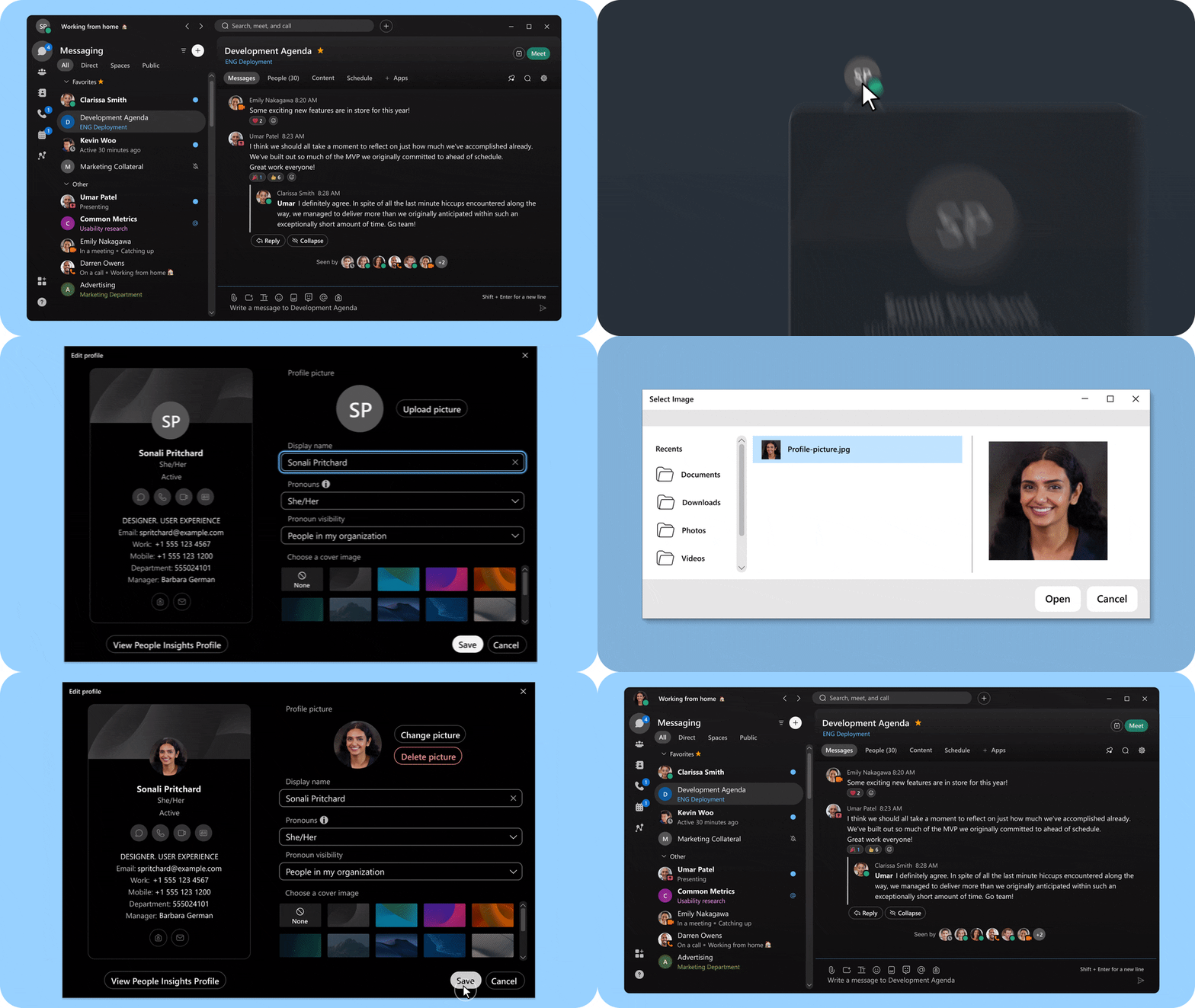
You can change your display name to a nickname.
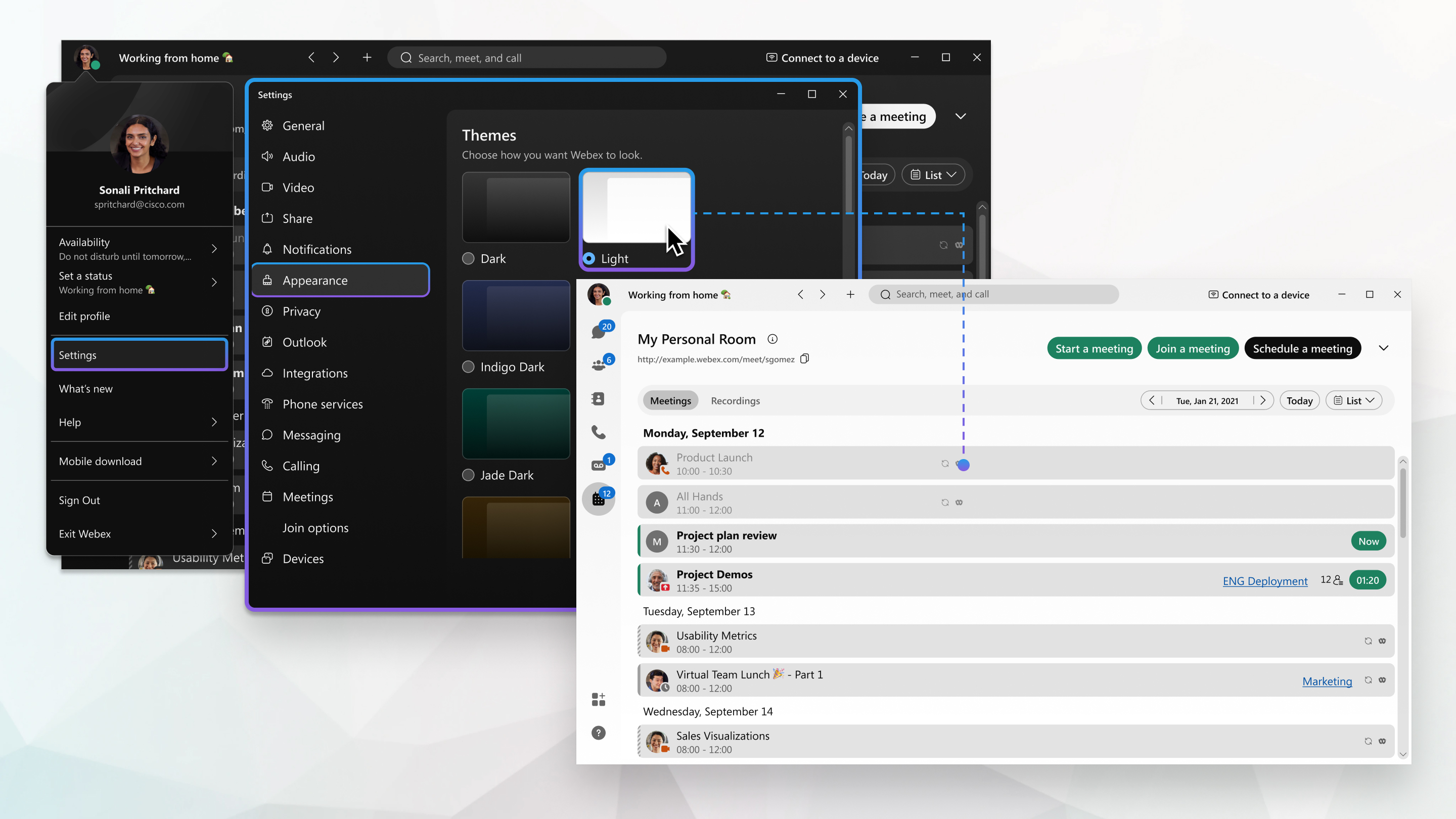
Add more color to your view by choosing your preferred color theme.
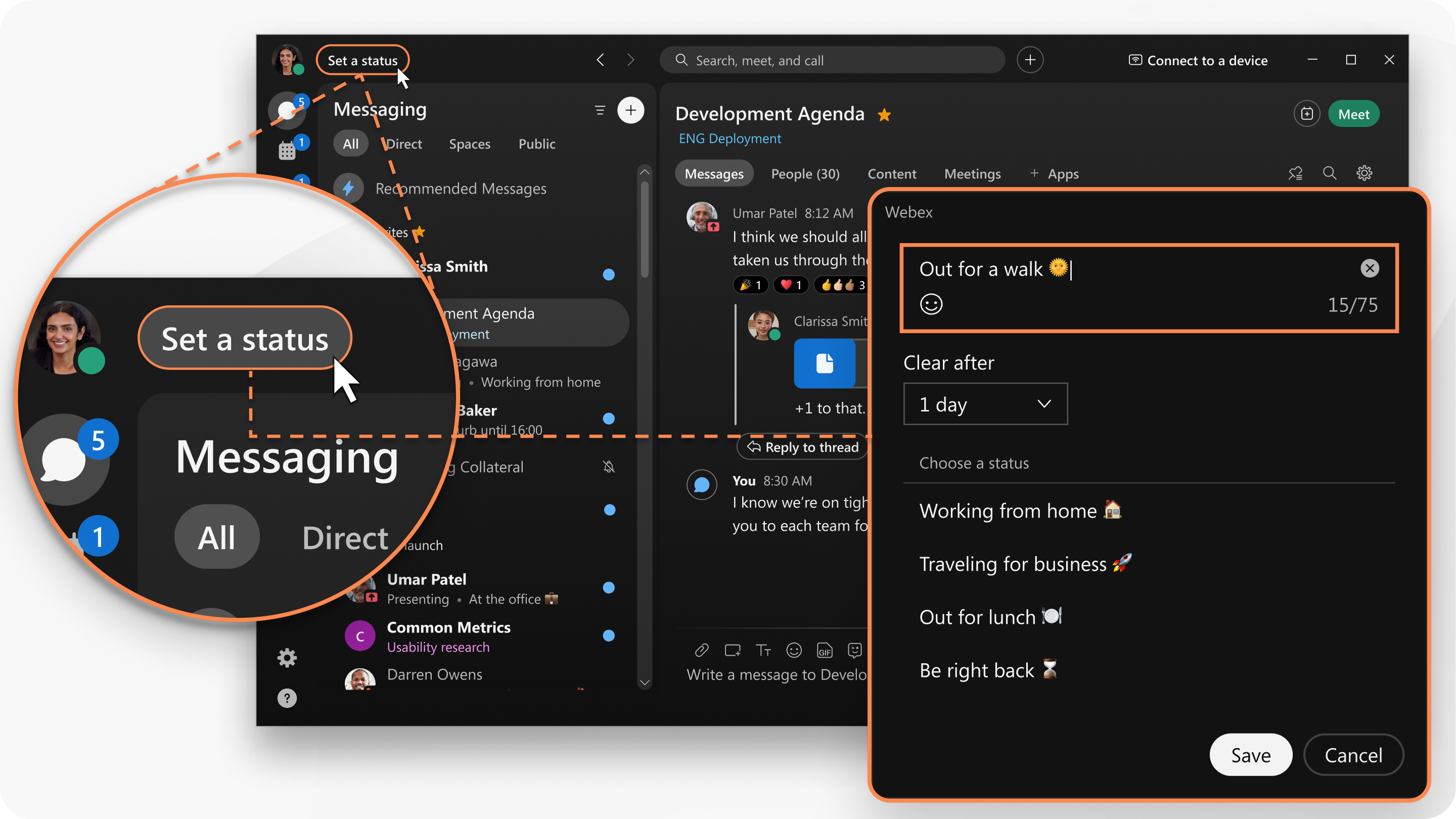
You can change your status to be something more descriptive. If you have to step out for a bit or you're busy, you can let people know just by changing your status in the app. For example, you can set it to Be right back or let people know you don't want to be disturbed. You can also make up a custom status so people know what you're up to.
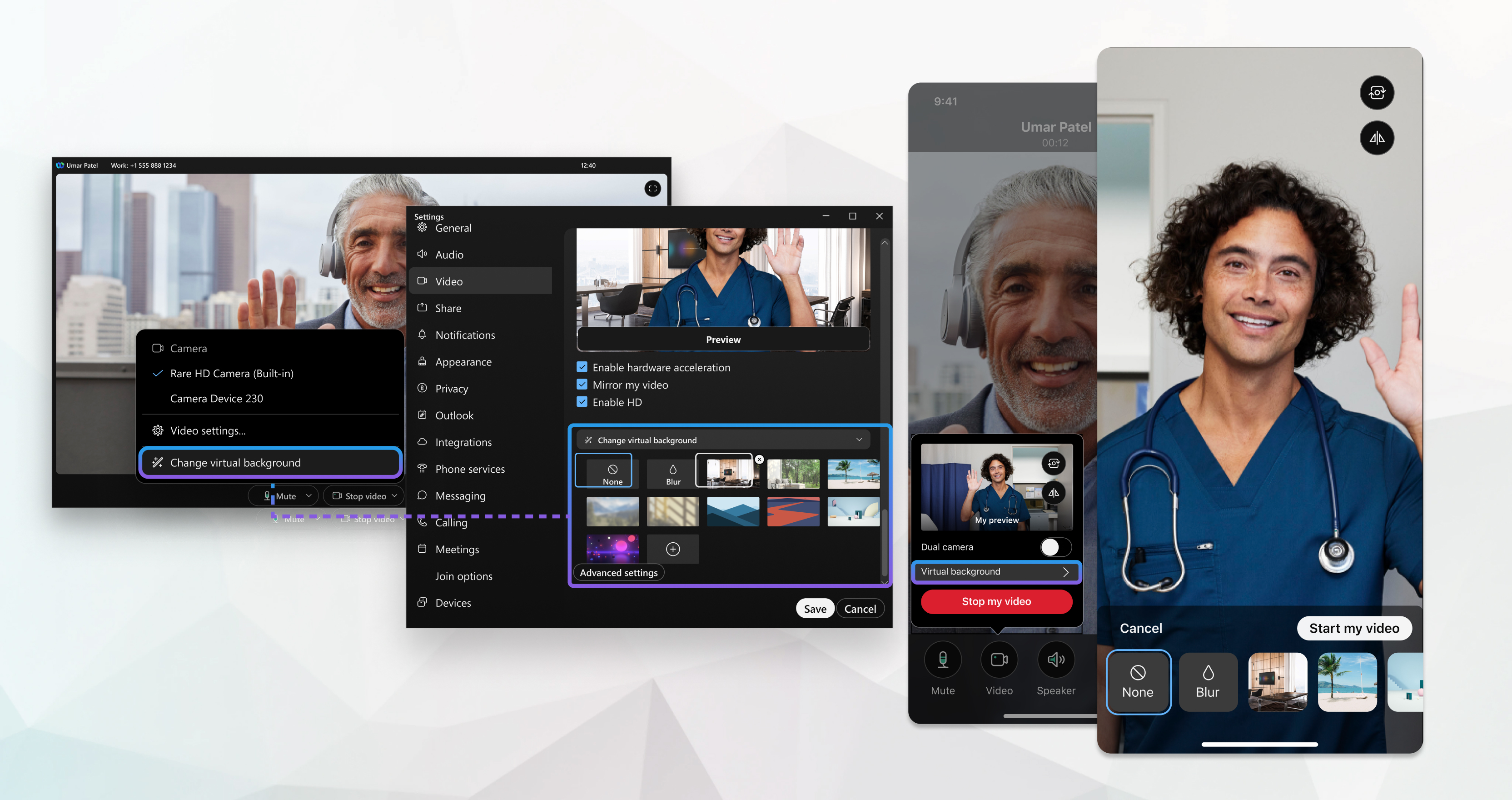
If you're in a call or meeting and you're sharing your video, you can blur your background to hide anything around you or even use a fun virtual background.
Source: https://help.webex.com/en-us/article/dzjy9s/Add-Your-Company-Branding-to-Webex