Webex Calling | Cisco 9861 Phone Quick Start Guide
Overview
Cisco 9861 Phone Quick Start Guide
Cisco Desk Phone 9861 is available in two versions: the 9861 model that features Wi-Fi, Bluetooth®, and NFC capabilities, and the 9861NR model that doesn't support Wi-Fi, Bluetooth®, and NFC. Despite this distinction, both versions have the same hardware features.
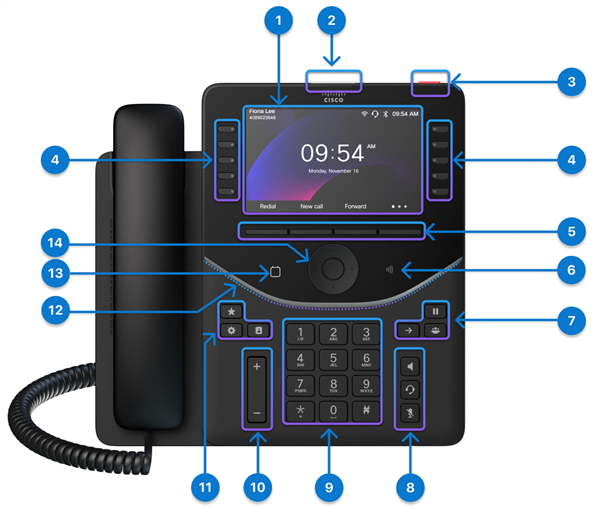
Hardware Feature | Purpose |
|---|---|
1. Phone screen | 5" color screen (Resolution 800 x 480) |
2. Top 360 LED | Indicates the states of call, message, and the phone. |
3. Action button * | Press the button to place a service call, such as an emergency call, if configured. |
4. Line buttons and programmable feature buttons | Access your phone lines, features, and call sessions. |
5. Softkey buttons | Access to functions and services. |
6. NFC tag | The location of the NFC tag. Scan the NFC tag to write onboarding information to the phones. The onboarding information can be preconfigured in an industrial NFC writer/reader or a mobile phone running a custom app. |
7. Hold/Resume, Transfer, and Conference | Hold/Resume Transfer Conference |
8. Headset, Speakerphone, and Mute | Headset Speakerphone Mute |
9. Alphanumeric keypad | Use the keypad to input numbers, letters, and symbols. |
10. Volume button | Adjust the handset, headset, and speakerphone volume (off hook), and the ringer volume (on hook and when the phone is idle). |
11. Favorite, Settings, and Contacts | Favorite Settings Contacts |
12. Front Arc LED | Indicates the states of the phone, calls, and messages. |
12. Calendar button | Tap the Calendar button to open your calendar. This button is only accessible if your administrator has set up the Calendar service on your phone. |
13. Navigation Cluster | The Navigation Cluster consists of the Navigation Ring and Select button. Used to scroll through menus, highlight items and select the highlighted item. |


*Perdigon does not have this button programmed by default.
For more information on the DP-9861: https://help.webex.com/en-us/article/29odsb/Get-started-with-Cisco-Desk-Phone-9800-Series#reference-template_8c71fabc-2d42-4926-9452-e05a834910dc
Source: https://help.webex.com/en-us/article/29odsb/Get-started-with-Cisco-Desk-Phone-9800-Series
Related Articles
Webex Calling | Cisco 9851 Phone Quick Start Guide
Overview Cisco 9851 Phone Quick Start Guide Cisco Desk Phone 9851 front view Hardware and buttons on the front Hardware Feature Purpose 1. Phone screen 3.7" color screen (Resolution 480 x 240) 2. Top 360 LED Indicates the states of call, message, and ...Webex Calling | Cisco 9841 Phone Quick Start Guide
Overview Cisco 9841 Phone Quick Start Guide Hardware Feature Purpose 1. Phone screen 3.5" grayscale screen (Resolution 384 x 160) 2. Top 360 LED Indicates the states of call, message, and the phone. 3. Action button* Press the button to place a ...Webex Calling | Conference Calls with Your Desk Phone
Overview This guide covers everything you need to know about conference calling when using a Cisco desk phone with the Webex App. Whether you're an executive assistant managing calls for your boss or a team member pulling colleagues into a ...Webex Calling | Use CScan to test Webex Calling network quality
CScan is the network readiness tool designed for Webex Calling. Anyone can use it to test their network connection to Webex Calling. The Tool is located here: https://cscan.webex.com/ Introduction Prequalifying service availability for a customer ...Webex Calling | Features available by license type for Webex Calling
Webex Calling licenses can be assigned to Users or Workspaces depending on the feature requirements. With Webex Calling, there are three license options available, Professional, Standard, and Workspace. Professional license (User): Built for ...