Control Hub | Claim users to your organization ("convert" users)
Overview
When your organization adds and verifies its email domain in Webex Control Hub, any existing free (personal) Webex accounts that use that domain are claimed by the organization. Those accounts are converted from self-managed free accounts into organization-managed accounts under your company's Webex subscription.
This is a normal part of deploying Webex Calling or Webex Meetings. It ensures every user on your domain is managed centrally through Control Hub, with proper licensing, security policies, and compliance controls.
If you received a message saying "Your company has claimed your email," this article explains what happened and what to do next. Scroll to For End Users for step-by-step instructions.
What the User Sees
After your organization claims the email domain, affected users receive an email notification from Webex. The next time they sign in to Webex (app or browser), they see a screen like this:
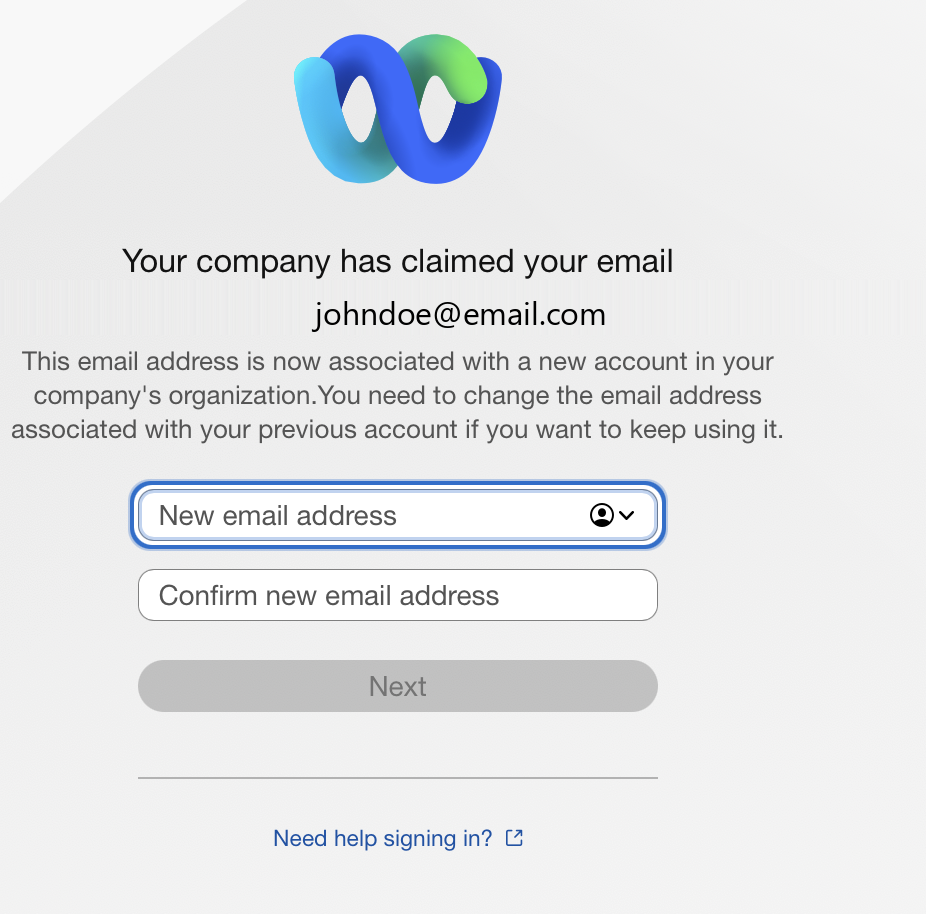
The screen displays:
- "Your company has claimed your email" followed by the user's work email address
- An explanation that the email is now associated with a new account in the company's organization
- Two fields: New email address and Confirm new email address — for reassigning the old free account to a personal email
- A Next button to continue
- A Need help signing in? link
What This Means for the User
If the user had a free Webex account tied to their work email, that account content (personal messages, spaces, meeting history, contacts) is NOT lost — but it needs to be reassigned to a personal email address so the work email can be used for the new organization-managed account.
The user has three options:
- Reassign the old account to a personal email — Enter a personal email (e.g., Gmail) in the fields shown. The old free account moves to that email, and the work email becomes available for the new managed account.
- Delete the old free account — If the old account has no content worth keeping.
- Contact IT / admin — If unsure or needing help.
For End Users — Step by Step
- When you see the "Your company has claimed your email" screen, do not panic. Your data is safe.
- Decide: do you want to keep your old free Webex account (messages, spaces, contacts)?
- Yes — Enter a personal email address (e.g., your Gmail) in the New email address field. Confirm it. Click Next. Verify the new email via the confirmation link Webex sends.
- No — You can skip reassigning; the old account will be removed as the claim completes.
- After the reassignment, sign in again using your work email. You'll now be part of your company's Webex organization with the licenses and features your admin has provisioned.
- If you need your old content moved into the new account, contact your admin — they can request a content migration from Webex Support.
For Admins
- Users are auto-notified by Webex when the claim occurs. No additional communication is required, but a heads-up email from IT is recommended.
- Check user status in Control Hub → Users. Converted users will show a "Claimed" or similar status until they complete the reassignment.
- If a user can't access the reassignment screen, reset their Webex sign-in from Control Hub.
Related Resources
- Add a User with Existing Free Webex Account — Converting free accounts to managed
- User Status of New and Converted Users
- Webex Control Hub — Admin portal
- Webex Settings — User self-service
Related Articles
Control Hub | Error: 'The domain of this user is not available for conversion'
Overview ISSUE When attempting to migrate consumer users into a new organization in Webex, users may encounter an error message stating, "The domain of this user is not available for conversion." This error prevents the successful migration of users ...Webex Calling | Supported calling options in Webex App
In Webex App, you're assigned a calling option that works best in your organization or for your individual needs. When you make a call from the app, your calling experience depends on your account settings. You can make a call from many different ...Webex App | Supported calling options in Webex App
In Webex App, you're assigned a calling option that works best in your organization or for your individual needs. When you make a call from the app, your calling experience depends on your account settings. You can make a call from many different ...Webex Calling | Use CScan to test Webex Calling network quality
CScan is the network readiness tool designed for Webex Calling. Anyone can use it to test their network connection to Webex Calling. The Tool is located here: https://cscan.webex.com/ Introduction Prequalifying service availability for a customer ...Webex Calling | Manage a shared voicemail and inbound fax box for Webex Calling
You can create a shared voicemail and inbound fax mailbox and assign to users or call routing features. The voicemail group feature allows you to set up message notifications, save messages, and customize the voicemail greeting. You might use a ...